
When batch printing signed PDF documents, you may notice that the signature appears as a question mark ('Signature Not Verified') or a red cross ('X' symbol) on the paper, even if it looks valid on your screen (in Adobe Reader or another PDF viewer). Follow this guide to enable automatic validation for printed documents.
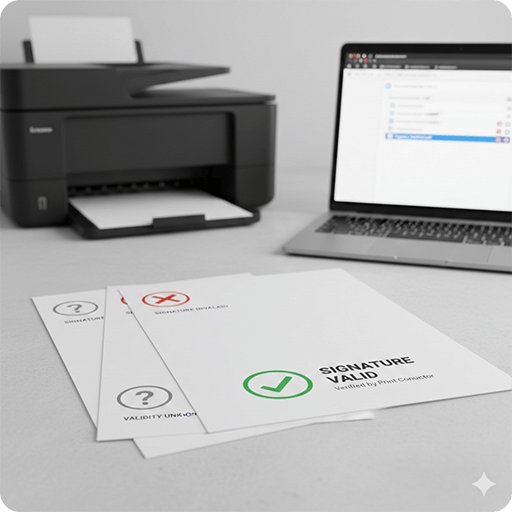
Digitally signed documents typically use standard PDF digital signature protocols (PAdES/X.509). A primary function of the certificate is to authenticate the owner's identity. These are examples of signature validation stamps on printed documents:
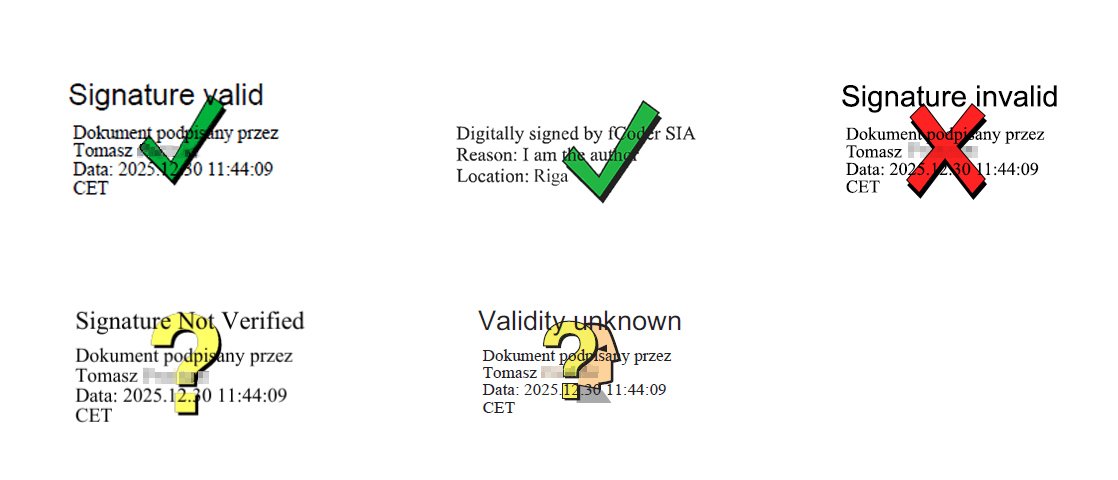
By default, Print Conductor may not perform the complex cryptographic checks required to validate a signature during the batch printing process. To ensure digital signatures are properly verified and the correct icon appears on your printed pages, use either of the solutions below.
Solution 1: Use the ABCPDF Engine
You can configure the internal ABCPDF print engine to perform validation automatically. This does not require external software.
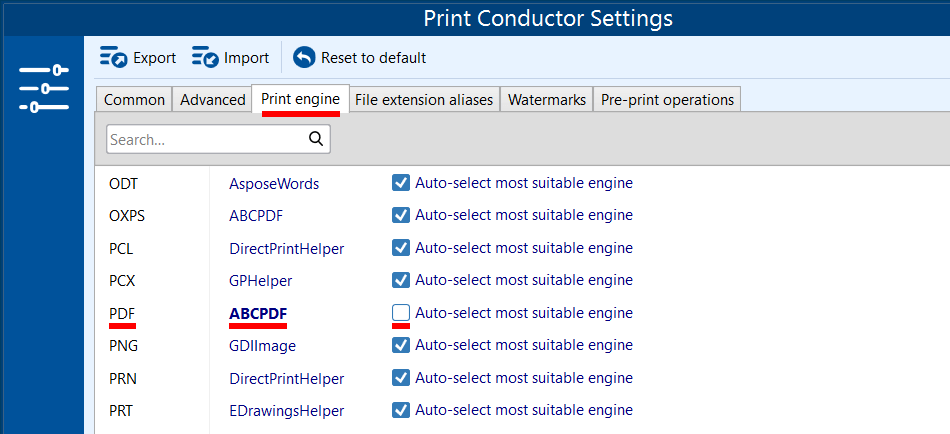
- Open Print Conductor Settings → Print engine: Launch Print Conductor, click the Settings button and switch to the Print engine tab.
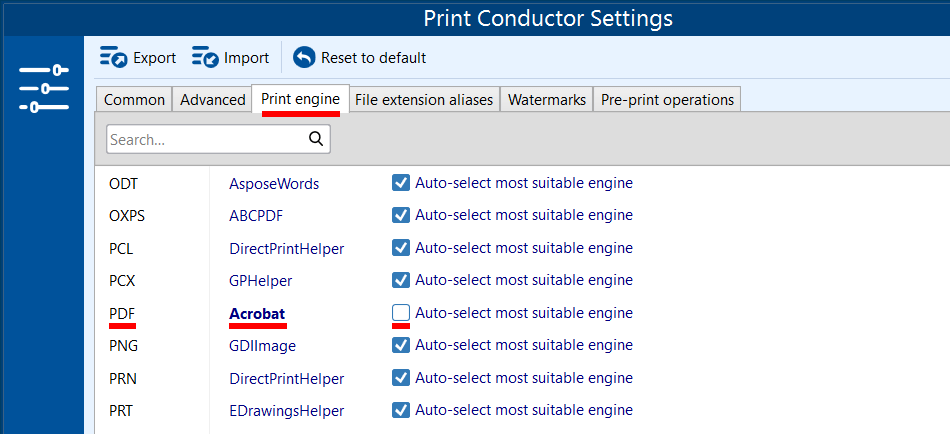
- Select ABCPDF as the Print engine for PDF documents (and disable Auto-select most suitable engine).

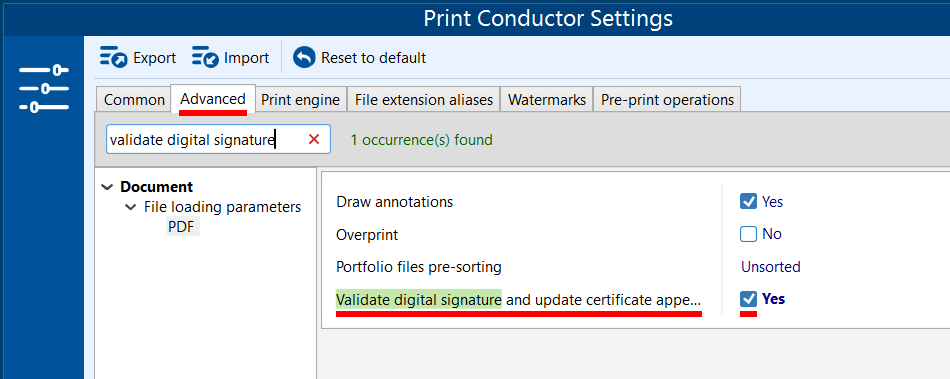
- Switch to the Advanced Settings tab, look for an option "Validate digital signatures and update certificate appearance" and make sure it's enabled. This tells Print Conductor to verify each PDF's signature while printing.

- Apply and print: Click OK to save settings, then start printing your PDF files as usual. With ABCPDF selected and validation enabled, Print Conductor will check each signature during printing.
Solution 2: Use the Adobe Acrobat Engine (Requires Acrobat Pro)
If you have the paid version of Adobe Acrobat Pro installed, you can force Print Conductor to use Acrobat's own engine for validation.
Note: The free version of Adobe Acrobat (Reader) will not work since it does not have an API that could be utilized by Print Conductor.
- Open Print Conductor Settings → Print engine: Open Print Conductor, click the Settings button and switch to the Print engine tab.
- Select Acrobat as the Print engine for PDF documents (and disable Auto-select most suitable engine).
- Enable signature validation: Switch to the Advanced Settings and find an option "Validate digital signatures and update certificate appearance" and make sure it's enabled (set to Yes).
- Apply and print: Save the settings and print your files. Print Conductor will now use Adobe Acrobat’s engine to print each PDF when performing signature validation.
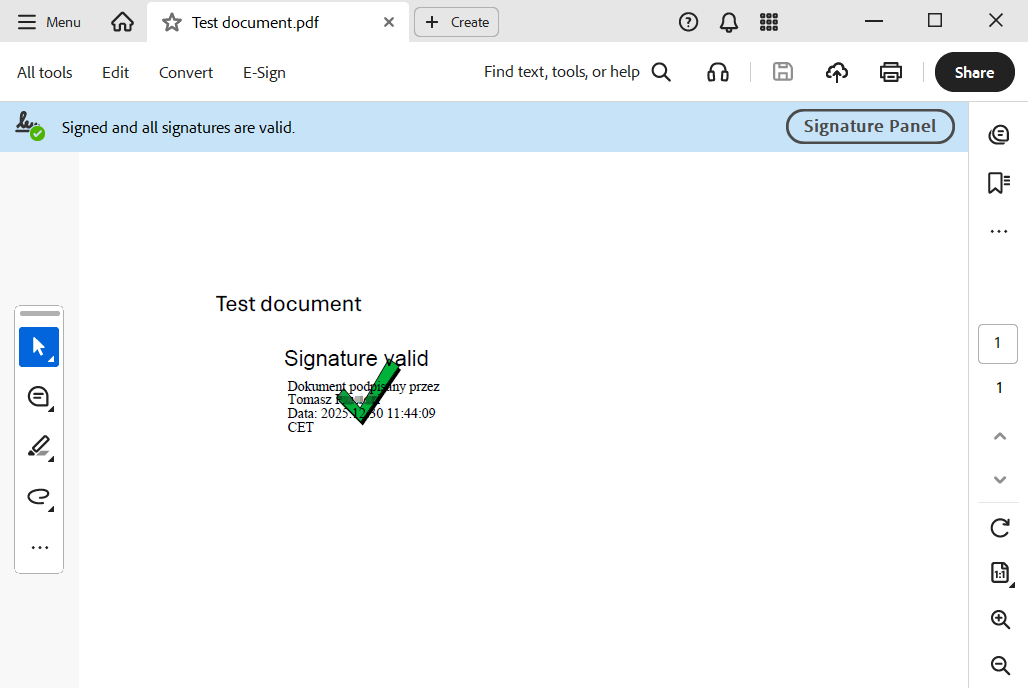
With the Acrobat engine and signature validation enabled, you should see the correct “Signature Valid” icon on printed pages when using Acrobat Pro.
Understanding Signature Validation Icons
When a digitally signed PDF is printed, a watermark icon is often stamped on the page to indicate the signature's status.
- Green Checkmark ("✔") – Signature Valid: A green checkmark watermark labeled "SIGNATURE VALID" appears if the digital signature has been successfully verified.
- Red Cross Symbol ("X") – Signature Not Verified. A red cross labeled as "SIGNATURE NOT VERIFIED".
- Question Mark ("?") – Validity Unknown: A yellow question mark watermark labeled as "VALIDITY UNKNOWN" appears if the document was printed "as is", without signature validation.
These visual indicators are printed as part of the document to show recipients whether the signature was confirmed or not. After printing with successful validation, Print Conductor will mark each page with a signature icon:
| Icon | Symbol | Status | Meaning | Action Required |
|---|---|---|---|---|
| Green Check | ✔ | Valid | The document is authentic and unchanged. | None. Proceed. |
| Question Mark | ? | Unknown | Signer is not in your contacts/trust list. | Add signer to "Trusted Certificates" to validate. |
| Red "X" | X | Invalid | The document was modified after signing. | Do not trust. Request a new document. |
 What's the main difference between the Question Mark (?) and the Red "X" rejection mark?
- Question Mark (?): Verification Incomplete. The software cannot verify the signer (usually a missing trust certificate).
- Red X: Invalid. The document has been modified after signing or the certificate is revoked. Do not trust.
Troubleshooting tips: Why can't I validate signatures in a PDF?
If your digital signatures still appear as invalid or unknown, check these common causes:
Signature was flattened (Converted to image): If a file was previously "Printed to PDF" or saved incorrectly, the interactive signature block may have been converted into a static image. Image-based signatures contain no cryptographic data and cannot be validated.
Untrusted Certificate: A "Validity Unknown" status usually means the signer's digital ID is not in your computer’s "Trusted Identities" list. You must manually trust the signer's certificate or their issuing authority (CA).
Document was Modified: Any change made to the document text or metadata after it was signed will break the security hash, resulting in an "Invalid" (Red X) status. Always use the original, unmodified file.
Browser Limitations: Files opened or printed directly from a web browser (Chrome, Edge, etc.) often fail validation. Always download the file and process it through Adobe Acrobat or Print Conductor.
Revocation or Expiry: If the signer’s certificate has expired or been revoked by the issuer, validation will fail. Ensure you have an active internet connection so the software can check the certificate's current status.
As always, feel free to contact or customer support in case of any issues of errors when printing digitally signed documents.