
When working with technical drawings, CAD files, or engineering documentation, it’s common to batch print files of different sizes on a large-format plotter with multiple paper sources (rolls).
The A1-drawing usually goes to the bigger roll, whereas the documentation details go to A3 or A4 — the smaller one. Many modern plotters are equipped with multiple paper rolls to automatically switch between mixed-sized CAD drawings. However, without the correct configuration, batch printing may result in incorrect scaling, wrong paper selection, or unnecessary paper waste.

This article explains how to configure Print Conductor and your printer driver so that mixed-size drawings are printed at their original size and automatically routed to the correct paper roll.
Contents
Use case: Batch printing mixed-size CAD (CAE, CAM) drawings
Imagine the following scenario:
- You need to batch print multiple TIFF-format drawings of different sizes (A1, A3, A4).
- Your plotter has two paper rolls loaded:
- Roll 1 — A1-sized drawing
- Roll 2 — A4/A3 smaller drawing or documentation details
You want the drawings to be printed at their original size and the documentation with no or minimal paper waste. You also want the printer to automatically select the appropriate paper roll for each document.
This workflow is typical in engineering, construction, manufacturing, and design environments where efficiency and material savings are critical.
Customer's request:
I am currently trialing your software to batch print various drawing sizes to our Epson SureColor T3700D plotter. The plotter is loaded with two rolls: A1 and A4.
The issue is that during batch printing, the plotter defaults all drawings to A4 rather than their true size. For example, A1 drawings are being forced into A4 format. Are there specific settings you recommend to enable automatic roll switching so the plotter selects the correct roll (Roll 1 or Roll 2) based on the document size?
Common problems you may encounter
If Print Conductor or the printer driver is not configured correctly, you may experience some of the following issues:
- All drawings are printed at the same size (for example, A4 only).
- Large drawings are scaled down instead of printing at their original size.
- The printer always uses one paper roll, even when another roll would be more appropriate.
- Paper waste gets increased when smaller drawings are printed on large-format paper.
How to set up automatic paper size selection and roll selection (Roll 1 or Roll 2)
To successfully print mixed-size drawings with automatic paper roll selection, you must configure both:
- Print Conductor — to respect the original page size of each document.
- The printer driver — to allow automatic selection of the paper source (paper roll).
Both steps are required; configuring only one of them may lead to incorrect output.
Step 1: Configure Print Conductor to use original page sizes
First, ensure that Print Conductor prints each document using its original page size.
- Open Print Conductor.
- Click Settings.
- Go to the Advanced tab.
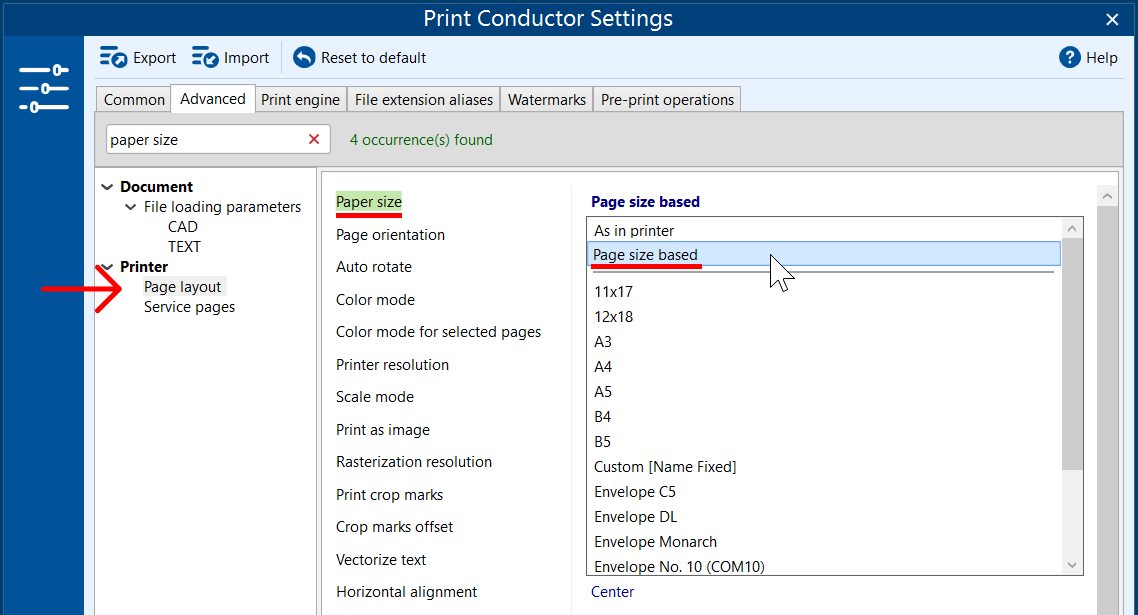
- Navigate to Printer → Page layout.
- Set Paper size to Page size based.
- Click OK to save the changes.
With this setting enabled, Print Conductor's Paper size: Page size based option will preserve the original dimensions of each drawing. Learn more →
Step 2: Enable automatic roll selection in the printer driver
Next, configure the printer driver so it can automatically choose the correct paper roll based on the page size.
- In Print Conductor, select your plotter from the printer list.
- Click Printer Properties.
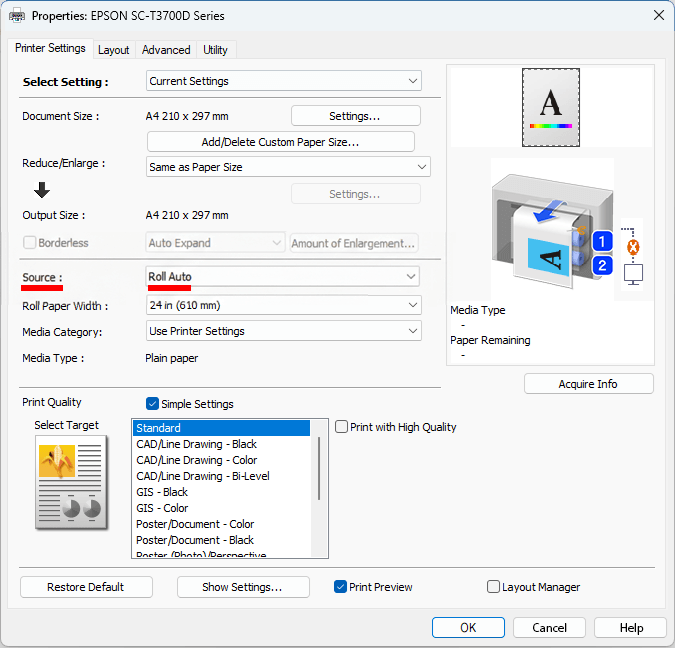
- Locate the Paper source or Paper feed option.
- Set the paper source to Auto, Roll Auto, or Automatic Selection (the exact name depends on the printer model and driver).
- Confirm the changes and close the driver settings.
Note: If a specific roll is selected manually, the printer will always use that roll and ignore document size differences.
The result is correct size printing from the most suitable paper source. After completing both steps:
- A1 drawings are printed from the A1 paper roll.
- A3 and A4 drawings are printed from the smaller paper roll.
- Each file is printed at its original size.
- Paper waste is minimized.
The entire process runs automatically during batch printing. This configuration allows you to automate printing mixed-size drawings efficiently without manual intervention.
Supported printers
This approach works with most large-format plotters that support automatic paper source selection, including models from:
- Epson SureColor series
- HP DesignJet series
- Canon imagePROGRAF series, and more
Summary
By combining Print Conductor’s page-size-based printing with automatic paper roll selection in the printer driver, you can reliably batch print mixed-size drawings while saving time and materials.