
For users seeking to customize the printing of bookmarked PDF documents, Print Conductor offers the "Insert pages from another file" feature. This article shows you how to insert a custom file — like a JPG, PNG, PDF, or HTML — or a special Print Conductor .cover template (e.g., Bookmark name.cover) between each bookmark section.
Use case:
You have a large, multi-page PDF document that is organized using PDF bookmarks. It contains multiple sections (e.g., 150 different reports combined into one file). To streamline the sorting process after the print job completes, you need to automatically output a physical separator sheet (a cover page) at the precise start of every bookmarked section within the document to separate the sections in the printed stack.
Solution:
You can use the Pre-print operations → Insert pages from another file feature in Print Conductor, paired with a special macro to detect bookmarks.
 Important note: The Pre-print operation described in this article executes inserting new pages inside a document, on the individual PDF file level. If you instead wish to insert cover pages between different, separate files in your List of Documents, please refer to the standard Cover page insertion available via Settings → Common → Print cover page

Step-by-step guide to inserting a cover page (separator) between PDF bookmark sections
To configure the software to detect internal PDF bookmarks and dynamically insert any file (e.g., a separator template file), follow these steps:
- Open Print Conductor and click the Settings button.
- Go to the Pre-print operations tab.
- Click Add new... and select Insert pages from another file operation.
- Configure the settings as follows:
Page range: Insert this macro
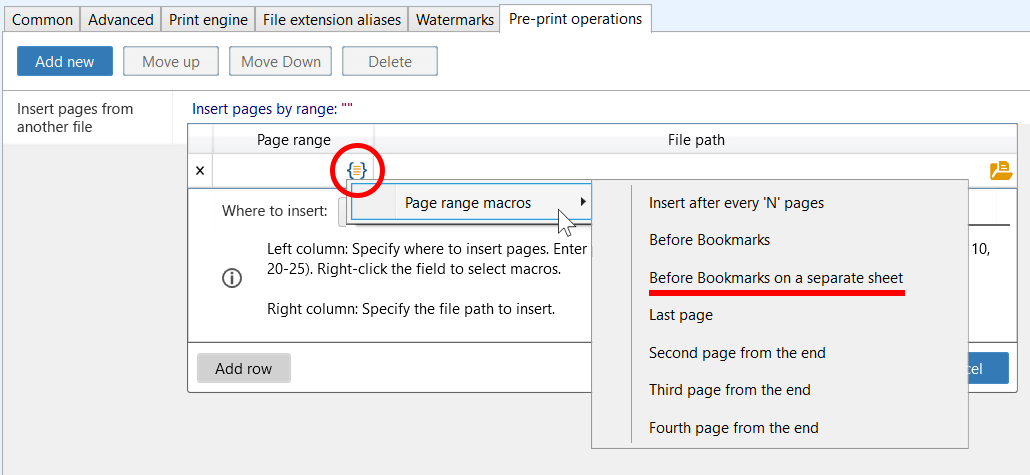
{Bookmarks}. This special macro tells Print Conductor to trigger the insertion at every bookmark location found in the source file. Designed to dynamically parse PDF bookmark architecture, it executes a metadata scan of the PDF's internal structure to locate the insertion points.Note: If you're printing in duplex mode, use the {Bookmarks(duplex)} macro instead — this will print each cover page on a separate sheet of paper.
File path: Specify the path to your custom file.
For a cover page with PDF bookmark names in the center of the sheet, try this cover page template:
C:\Program Files (x86)\Print Conductor\coverpages\Bookmark name.coverPlease verify that the file path is valid in case Print Conductor is installed in another directory. Enter %ProgramFiles(x86)% in the Windows Explorer address bar to access your "Program files" folder.
 By clicking the orange "Browse" icon, you can browse and select the file you want to use as a cover page (separator file) — this can be a PDF, JPEG, PNG, or a specific
 .covertemplate file from the "coverpages" folder (C:\Program Files (x86)\Print Conductor\coverpages\).Where to insert: Before specified page(s) / After specified page(s) Select the Before… option to ensure the separator is inserted BEFORE each bookmarked section.

- Click OK to save the Pre-print operation and OK again to close settings.
- Add your bookmarked PDF to the list and print.
 By clicking the orange "Browse" icon, you can browse and select the file you want to use as a cover page (separator file) — this can be a PDF, JPEG, PNG, or a specific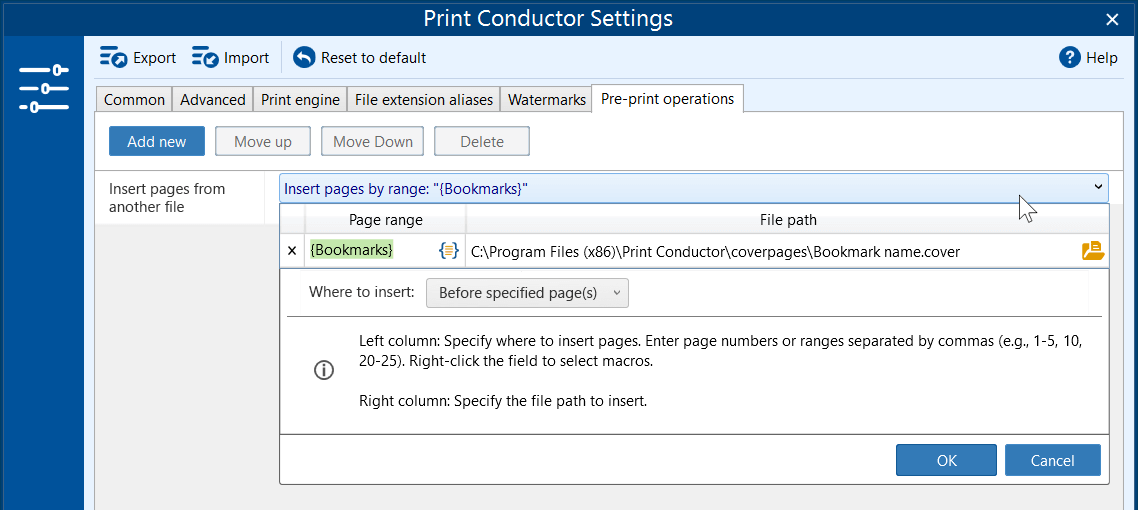
Notes on adding a Cover page in Duplex printing mode
If you are printing double-sided (with Duplex mode), there can be a problem with odd-numbered documents. For example, if a bookmark section has 3 pages, followed by a Cover page, the Cover page gets added to the "print stream" like this: [Page 1] [Page 2] [Page 3] [Cover Page]
Sheet 1: Front: | Back: [Page 1] [Page 2]
Sheet 2: Front: | Back: [Page 3] [Cover Page] (The problem)
Because the previous section ended on an odd page number (Page 3), the printer automatically prints the next page in the stream (the Cover page) on the back of that same sheet. To avoid this, you want the cover page as a standalone paper sheet and each new bookmarked section starting on a fresh sheet of paper.
Solution for Duplex mode:
- Use the macro
{Bookmarks(duplex)} - Set the file path to (or another template of your choice) C:\Program Files (x86)\Print Conductor\coverpages\Bookmark name.cover
- Make sure that Where to insert: After specified page(s) is selected
- Save the Pre-print operation and click OK to close settings
- Add your bookmarked PDF to the list and print
How to insert blank pages inside the document before printing